OneSafe Onboarding Guide: How to Get Approved Quickly
Last updated: November 25, 2025
Welcome to OneSafe! This guide walks you through each step needed to complete onboarding smoothly and get your account approved as fast as possible. Follow the steps carefully to avoid common delays.
1. Invite Stakeholders to the Account
If there are other co-founders, owners, or control persons for the account, invite them early so they can complete their verification.
Just follow these steps:
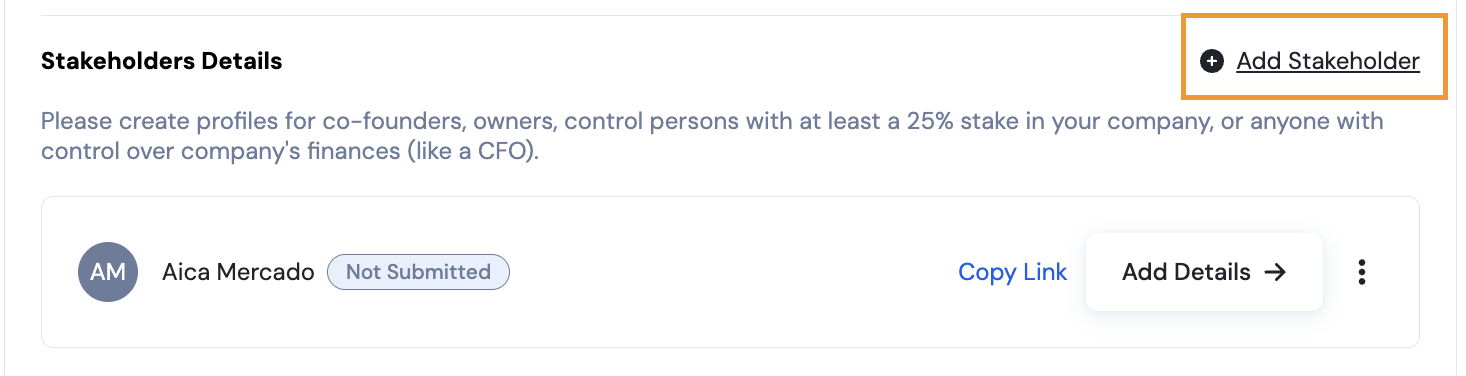
Navigate to Stakeholders Details on your OneSafe dashboard and click Add Stakeholder.
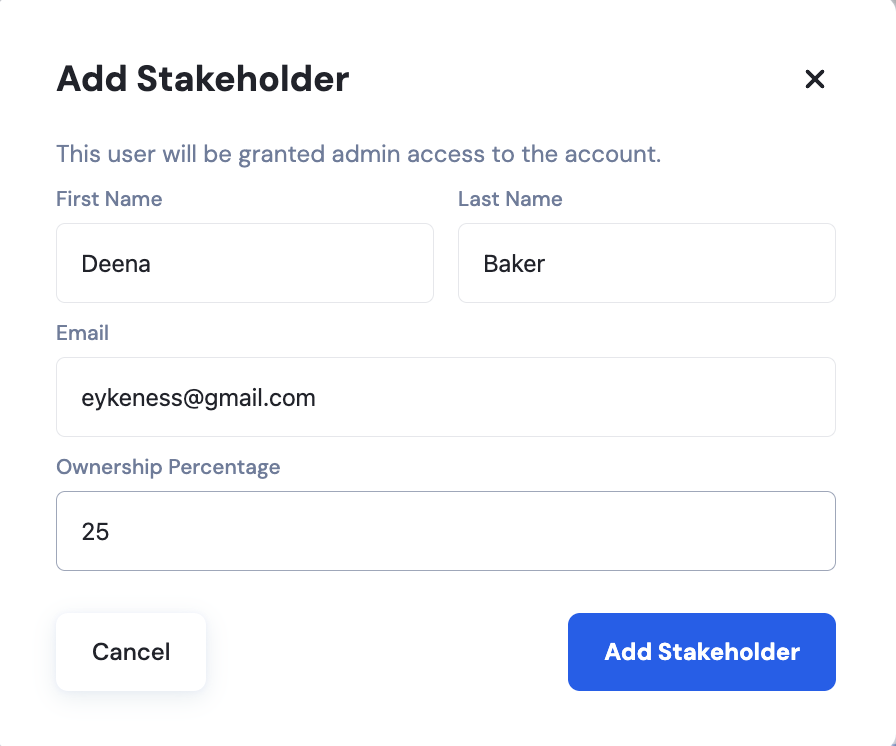
Fill out the details and select Add Stakeholder.
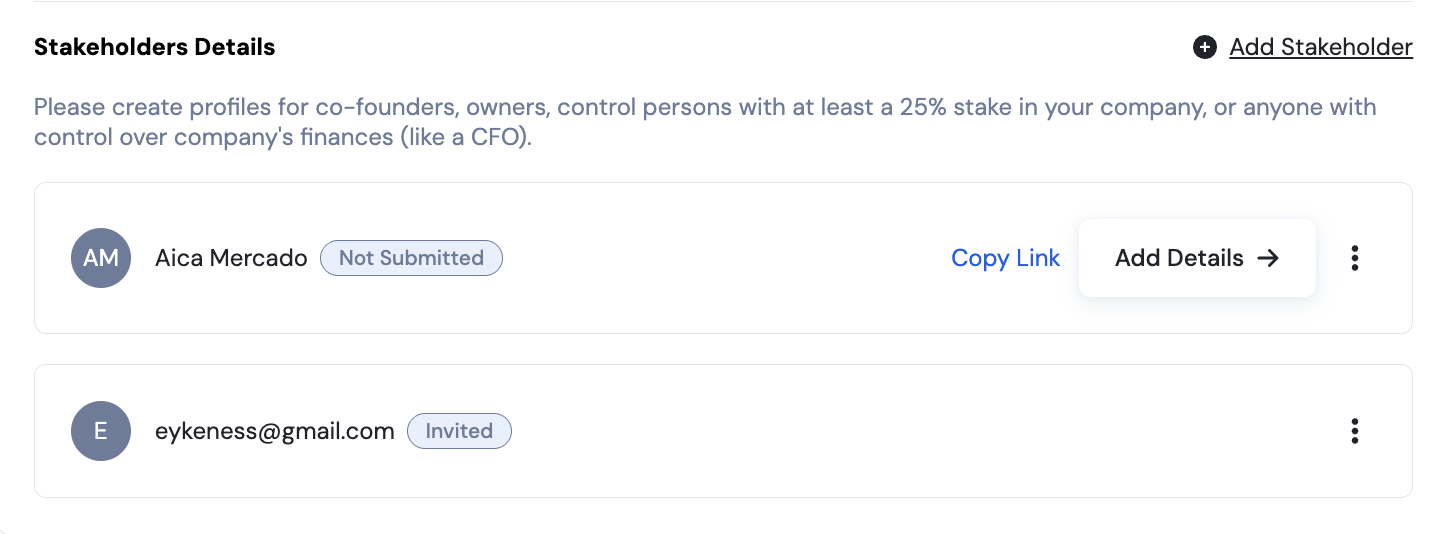
An invite to the account will be sent to that stakeholder via email. If you need to remove a stakeholder, just click on the three dots and select Delete.
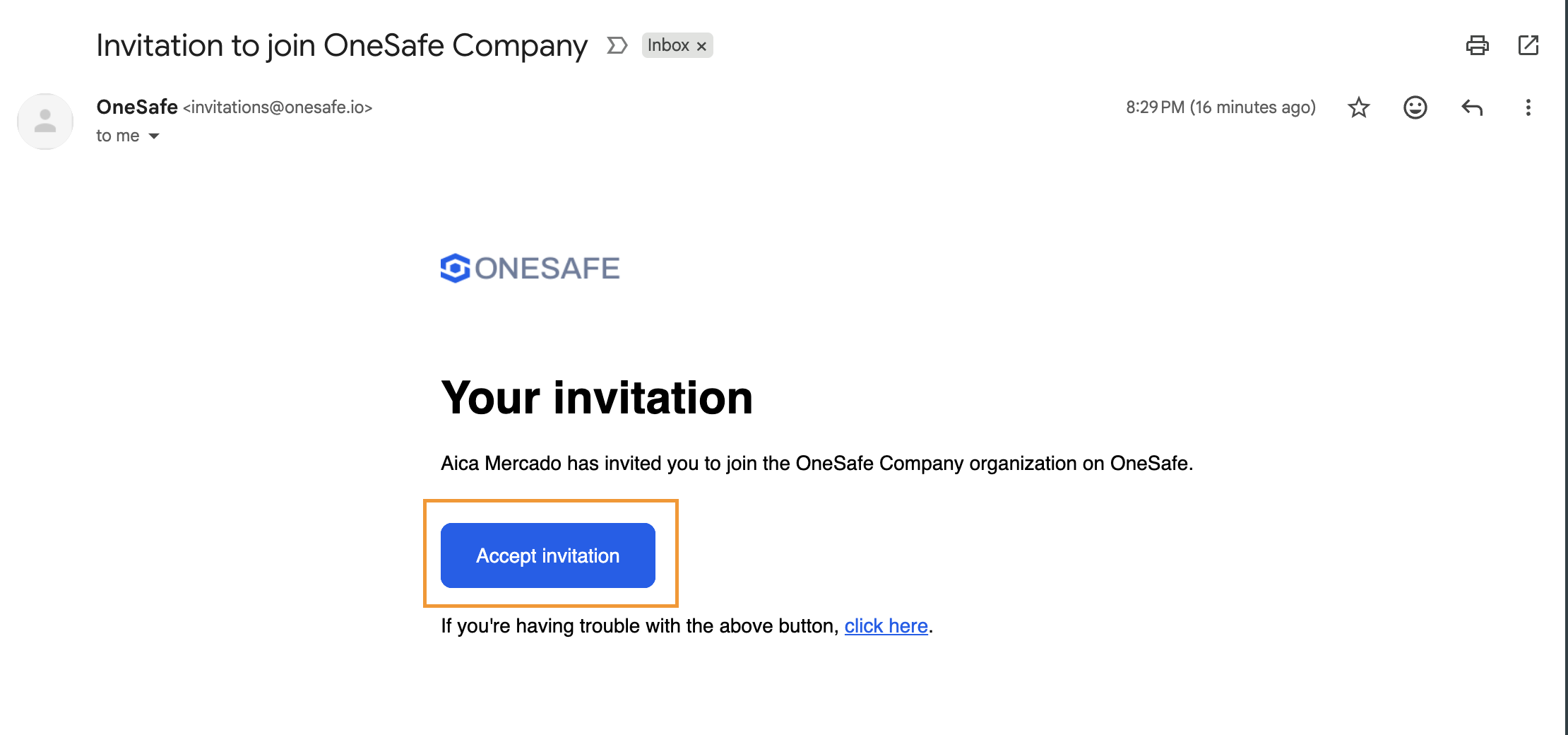
Once the stakeholder receives the email, they need to click Accept invitation.
They will be redirected to the OneSafe signup page where they need to fill out their details.
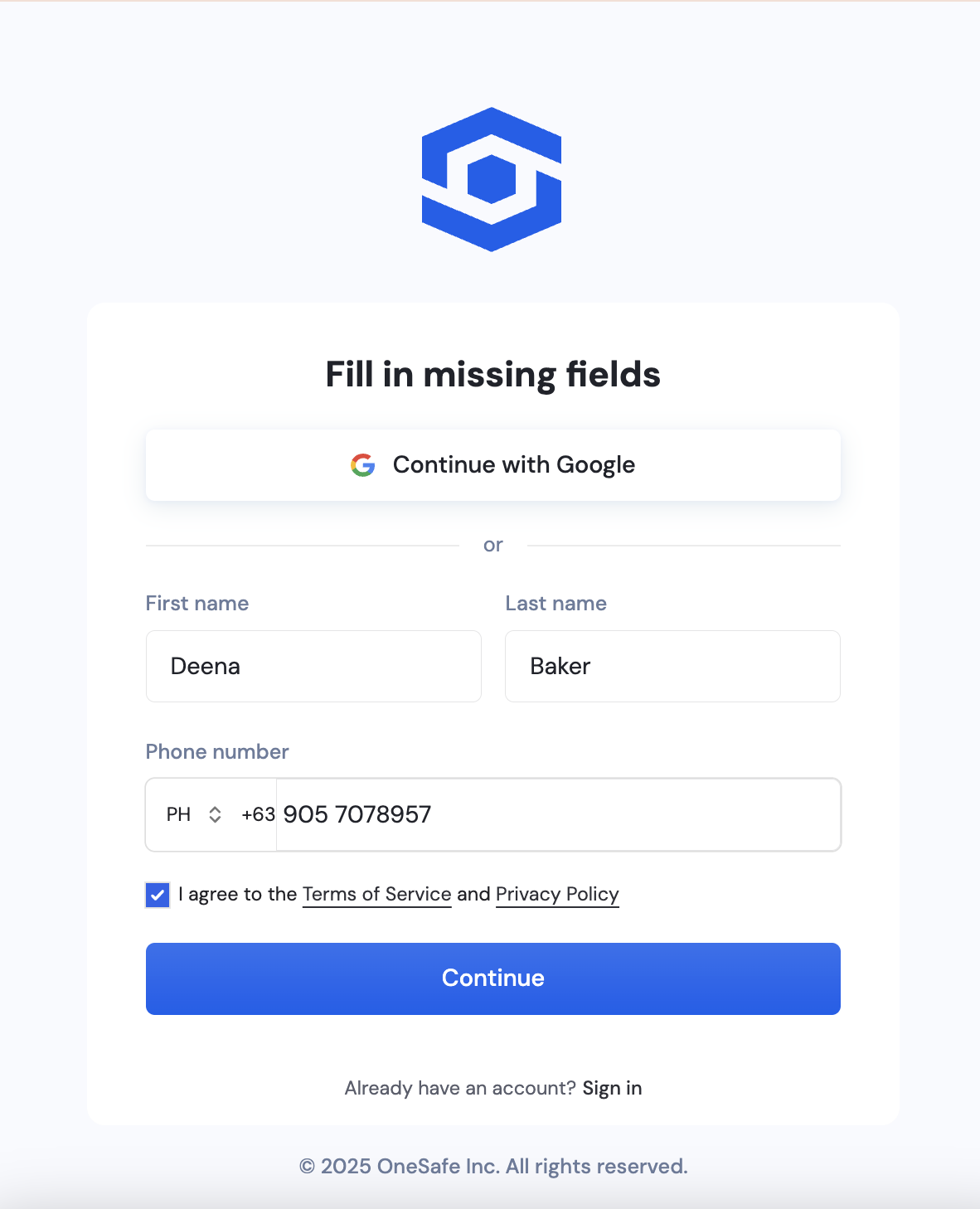
They will need to verify their phone number as well.
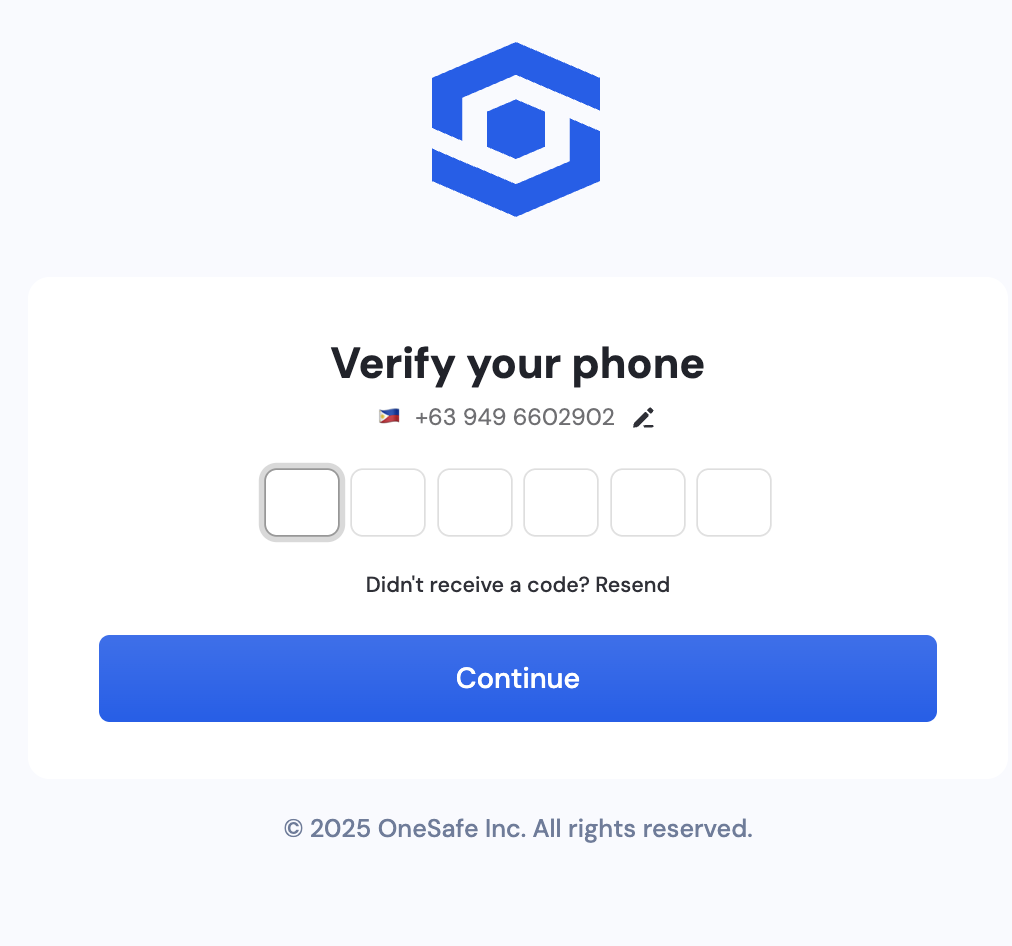
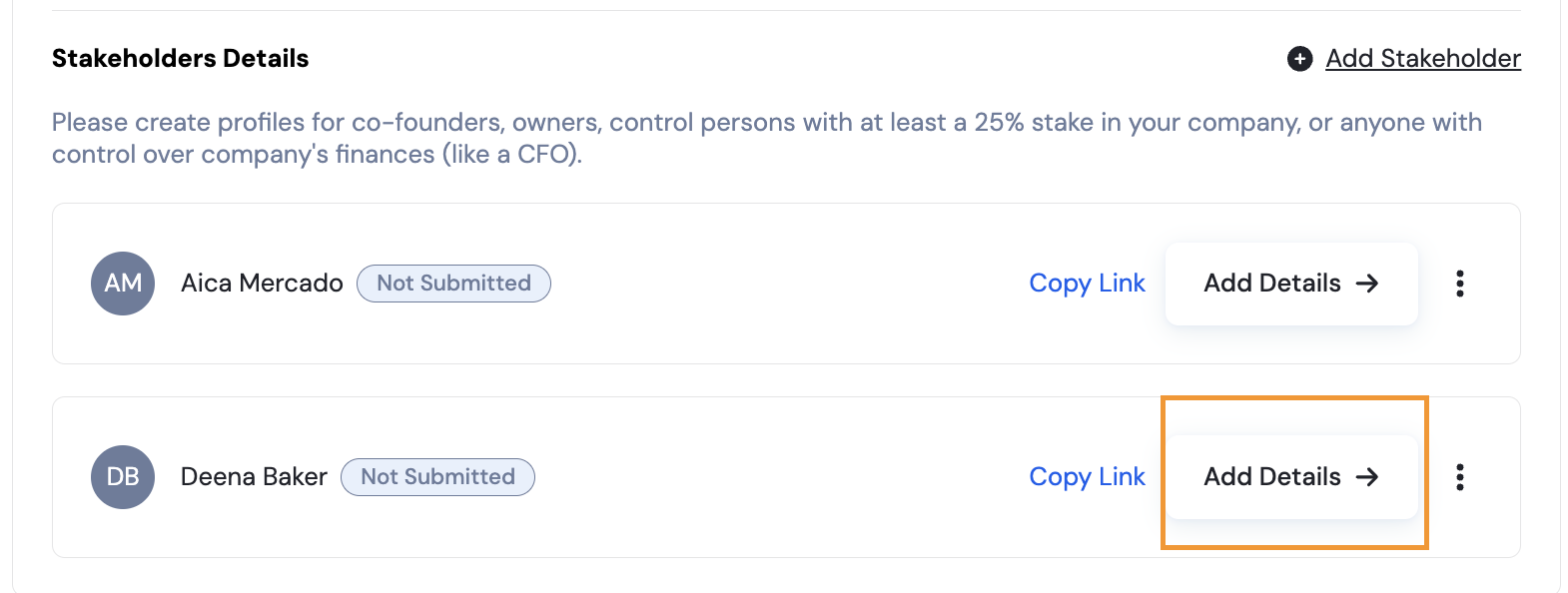
Once SMS verification is done, you'll see a button to Add Details. The stakeholder just needs to click this and complete KYC verification. For convenience, you may also copy the link to the KYC form and send it to the stakeholder.
2. Complete Your Personal Identity Verification (KYC)
Every account owner/controller must complete KYC. Before you begin, make sure your ID meets the following requirements:
Accepted ID documents:
Passport
Driver’s license
National ID card
Your passport or ID must be:
A live photo (no scans, PDFs, or screenshots)
Valid and not expired
Fully visible with all four edges
Clear, well-lit, and free from glare, blur, or shadows
An original physical document (no digital IDs unless your country uses official digital IDs that we support)
Tips to avoid KYC rejection:
Take photos in good lighting
Avoid glare from holograms
Do NOT use filters, edits, or camera flash
Make sure nothing is cropped or cut off
⚠ Most KYC verification failures happen due to scanned, blurry, or cropped IDs.
3. Complete Your Business Verification (KYB)
This is where most delays happen. Submitting correct and complete documents upfront can significantly speed up approval.
What you'll need to upload:
Depending on your jurisdiction, typical business documents include:
Certificate of Incorporation
Must be an official document issued by a government authority
Must clearly show company name and registration number
Should include official stamps, seals, or official signatures (where applicable)
Operating Agreement, Shareholder Registry, or Articles of Association (only if required for your business type or region)
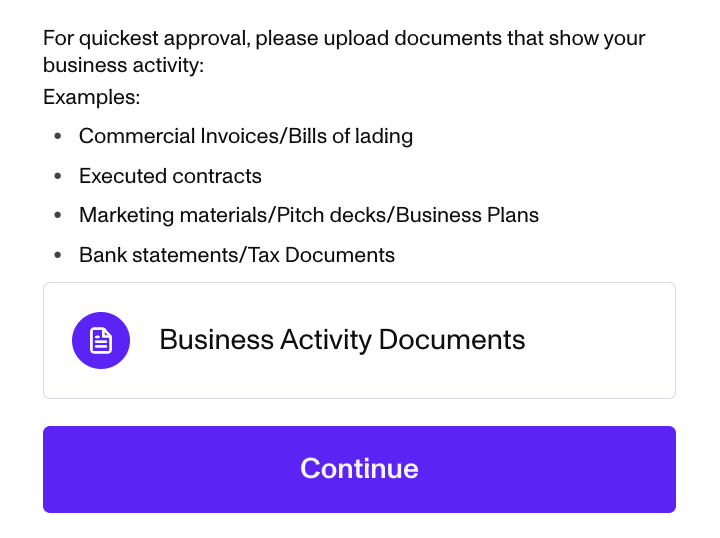
Proof of Business Activity (required if your online presence is limited)
Signed contracts
Invoices
Service agreements
Business proposals
Marketing materials
What makes a document acceptable:
All business documents must be:
Official
Signed (if required)
Complete (no missing pages)
Unredacted (no blurred headers, names, or signatures)
Clear and legible
In PDF or image format
Common KYB mistakes to avoid:
Uploading a draft version of incorporation documents
Submitting unsigned agreements
Missing pages or cut-off information
Uploading documents without government stamps
Using files that appear edited or manipulated
4. Provide a Valid Business Address
This is one of the most common reasons for failed KYB checks.
Do NOT submit:
Virtual office addresses
Mailbox service address
UPS/USPS mailboxes
PO boxes (unless your jurisdiction allows it for business registration)
⚠ These addresses are automatically flagged because our banking partners cross-check them against a database of known virtual offices.
Acceptable proofs of address:
You must provide either of the following:
Utility bill
Issued within the last 90 days
Shows your company name and address
Bank statement
Issued within the last 90 days
Shows your company name and address
Lease agreement
Dated within the last 12 months
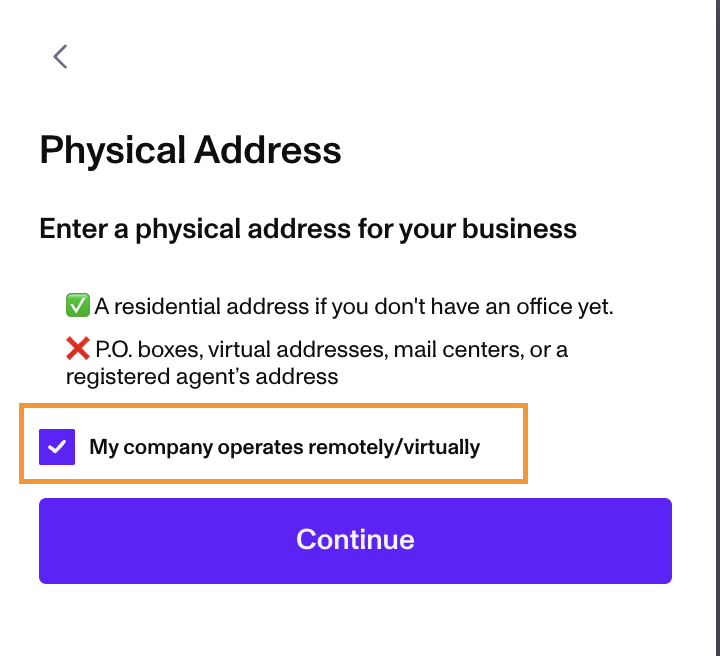
If you operate fully remotely:
You can mark your company as a virtual entity during onboarding. This is the correct option for remote companies who do not have a physical business address.
5. Keep an Eye Out for Requests for Information (RFIs)
If our compliance team or banking partner needs more details, you’ll receive an RFI. Responding quickly prevents delays.
Important:
RFIs are sent to your business email used during onboarding
Emails may come from bridge@cases.withpersona.com or onboarding@onesafe.io
Respond promptly with clear documentation to avoid delays
Tip: Add the emails above to your safe-sender list so it doesn’t end up in spam.
6. Speed Up Approval With a Strong Online Presence
Having a legitimate, verifiable online presence speeds up the verification process.
If you have a website, make sure it:
Clearly describes your product or service
Includes accurate contact details
Contains real content (no placeholders or empty pages)
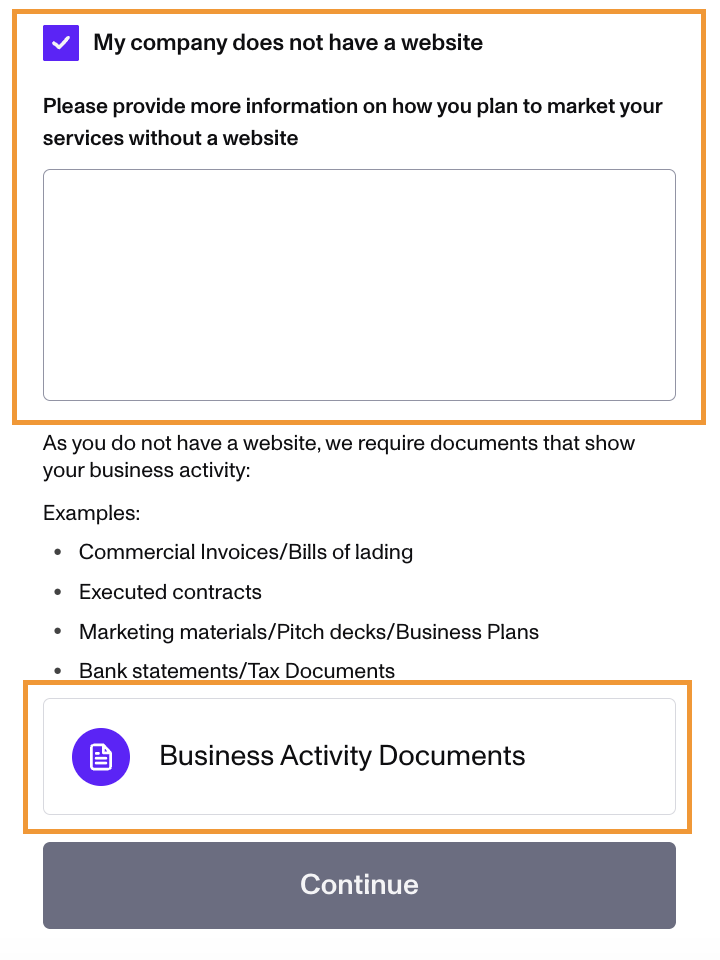
Note: If you don’t have a website yet, provide a detailed description of how you plan to market your services AND upload business activity documents instead (signed contracts, invoices, service agreements, business proposals, or marketing materials).
7. Need Help or an Update?
You can reach us through:
In-app support chat on the bottom right of your dashboard
Email: support@onesafe.io
We're here to help you complete your onboarding smoothly and get approved as quickly as possible!