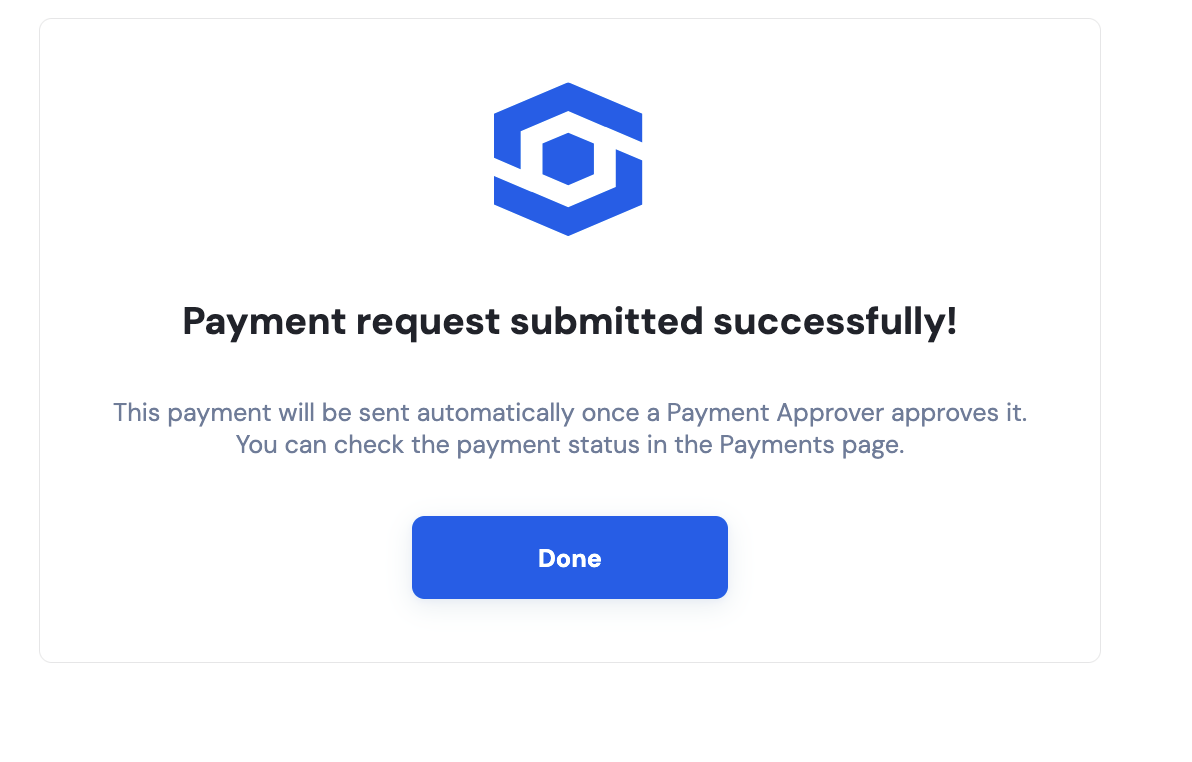
How to make a Payment Request?
Last updated: May 20, 2026
For a Payment Requester to make a payment request, they can follow the step-by-step process below:
👉 Read more about the Payment Requester Role
1. Start a Transfer
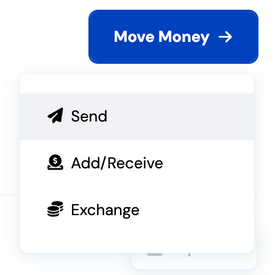
Click "Move Money" on your dashboard, then select "Send."
2. Select or Create a Recipient
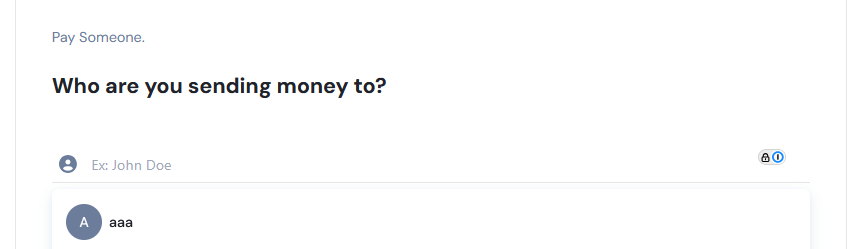
You’ll be prompted to either:
Search for an existing recipient, or
Select “Pay Someone New” to create a new recipient.
Address Type Setup
Using the toggle switches, select the appropriate address type and input the required recipient details.
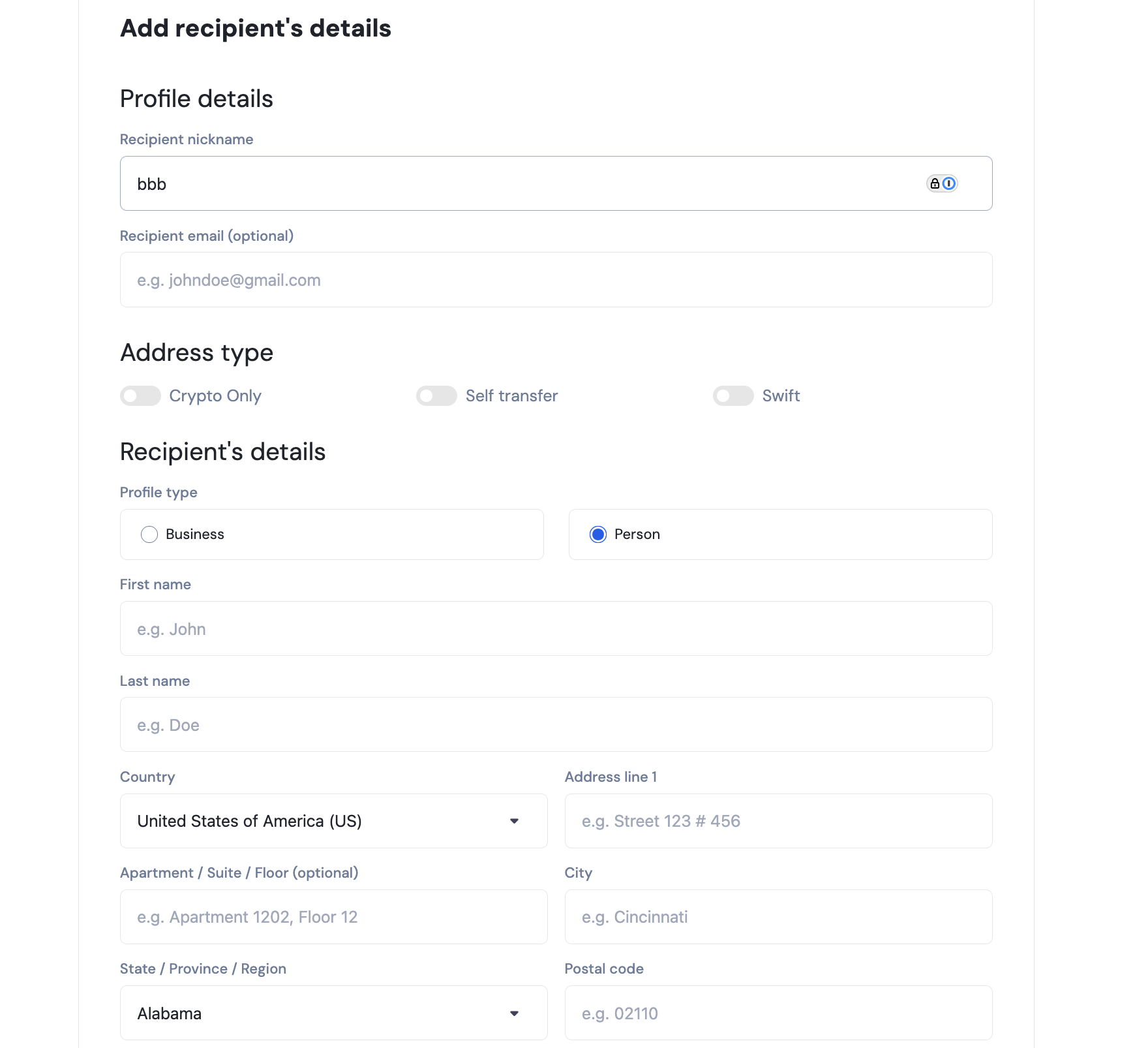
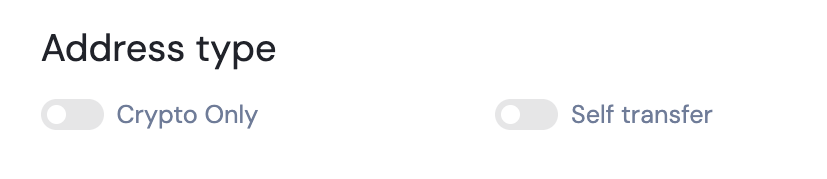
Address Type Options:
No selection
Sets up basic details for for a Stables banking transfer (ACH, Wire, SEPA, SPEI, Pix, FPS).
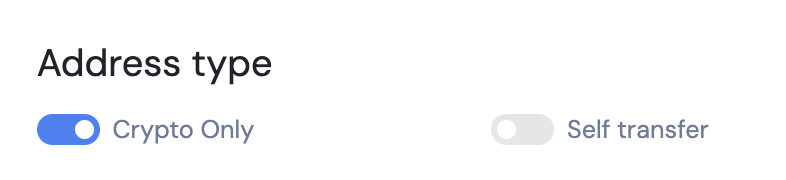
Crypto Only
Used when sending funds to crypto wallets exclusively.
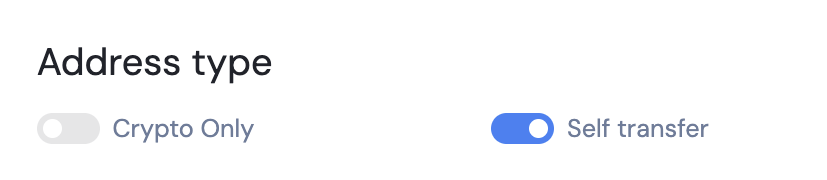
Self transfer
Automatically fills the fields with your own business' details.
Once saved, recipient details cannot be modified, except for the nickname and email.
You can later add new banking or crypto network details by toggling the respective switches for the address type.
3. Choose a Payment Method & Enter Destination Details
After completing the recipient info, click "Next".
You’ll now be asked to choose a payment method.
ACH/Wire: For USD domestic transfers within the US
SEPA: For EUR transfers within the SEPA zone
SWIFT: For international transfers or bank accounts with SWIFT deposit details (upon request)
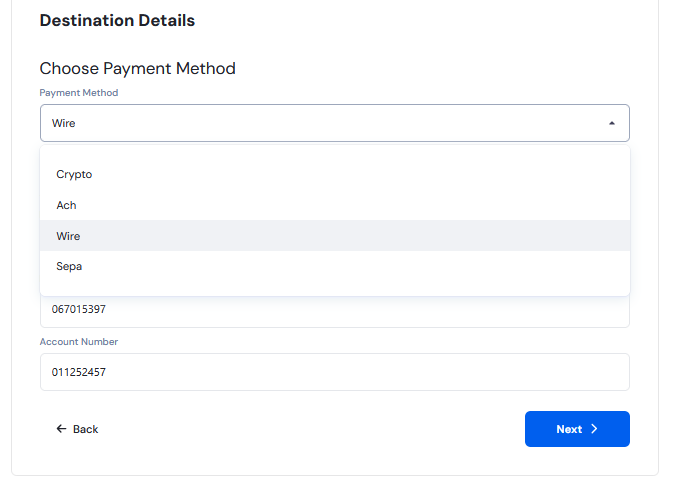
The options shown depend on the recipient's selected address type and the available payment methods linked to your account.
Input the destination details and click "Next"
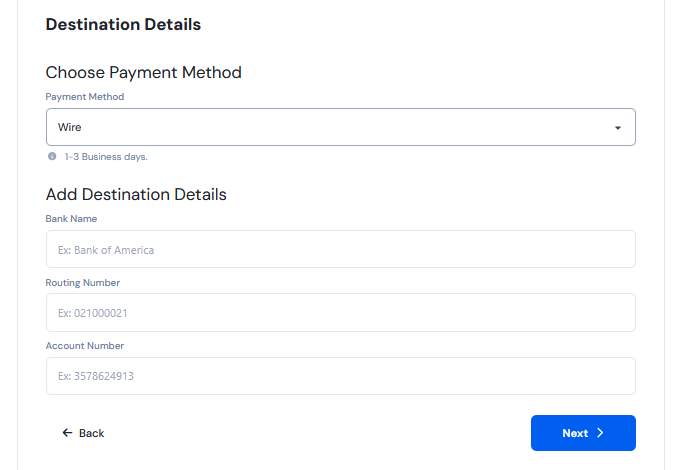
These details cannot be modified after you proceed past this step
4. Enter Transfer Details
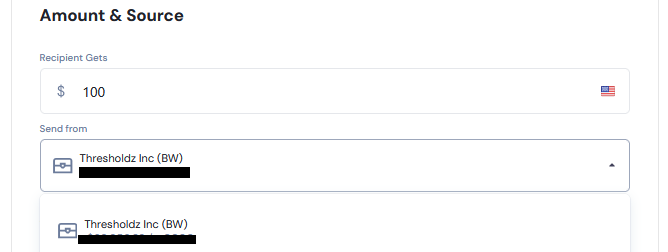
Specify the amount you wish to send and select the account to fund the transfer.
5. Add Additional Information
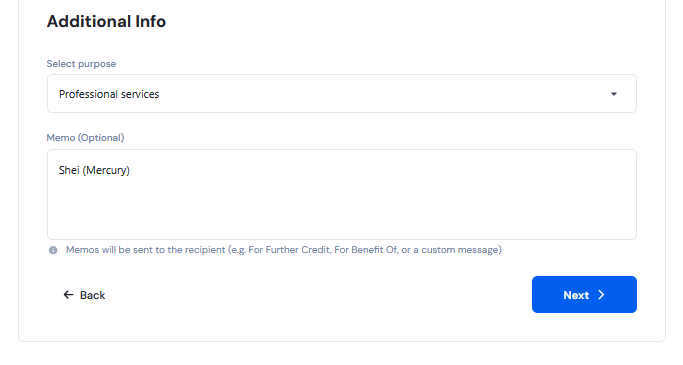
If selecting "Personal Account", ensure the destination account name matches your company name exactly.
You may also add a memo reference for all transactions.
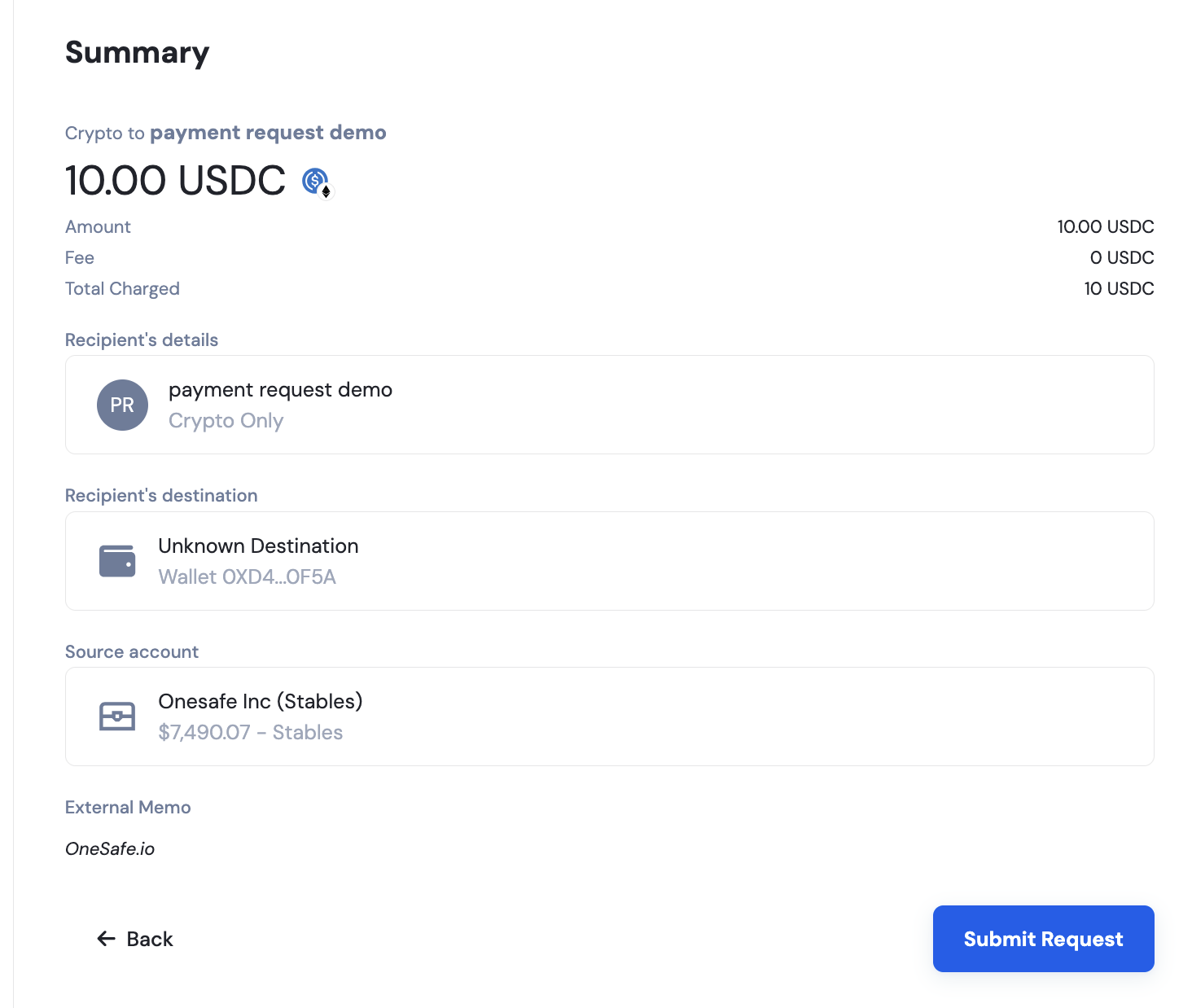
6. Review & Confirm
Review the transaction summary shown in the final screen.
If all details are correct, click "Confirm" to complete your withdrawal.